 GPSoftware heeft versie 13.23 van zijn bestandsmanager Directory Opus uitgebracht. Dit programma is in zekere zin vergelijkbaar met Total Commander, maar dan met uitgebreidere mogelijkheden over welke informatie precies moet worden weergegeven en op welke manier. Directory Opus is veelzijdig en extreem configureerbaar, zowel wat functionaliteit als wat uiterlijk betreft. Dat is meteen ook het grootste probleem, want het programma kan zeker op beginnende gebruikers complex overkomen. Het programma kan na registratie 60 dagen worden getest; daarna moet een licentie van 89 Australische dollar worden aangeschaft, wat neerkomt op ongeveer vijftig euro. De changelog voor deze uitgave kan hieronder worden gevonden:
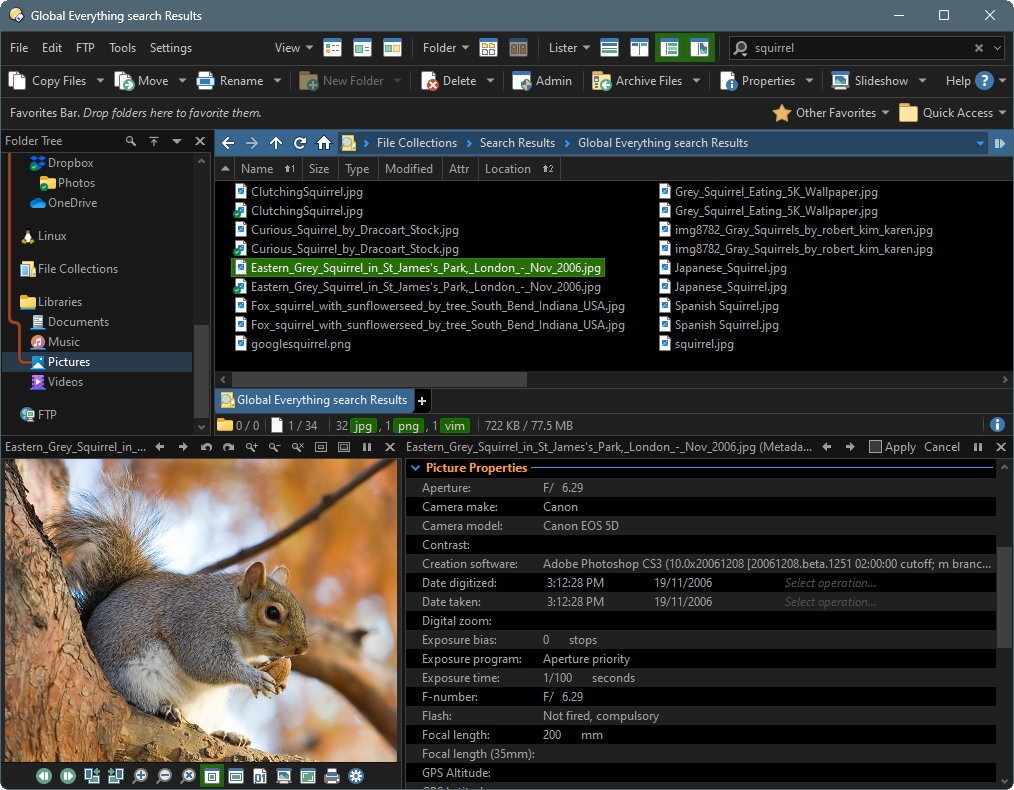
Image viewer enhancementsThe internal viewer is now GPU accelerated, giving much better performance when viewing large images. New options for the standalone viewer and viewer pane let you disable this and drop back to GDI rendering if needed.
Other improvements include:New Preferences options relating to the viewer:
- When selecting an area in the viewer (e.g. to copy it to the clipboard or crop) a magnifier now appears near the mouse cursor making it easier for you to position the selection. When the magnifier is visible, you can:
- Hold the Ctrl key down to slow the mouse cursor speed
- Nudge the mouse position with the keyboard cursor keys
- Zoom the magnifier with the mouse wheel
- The selection rectangle now has grab handles so you can edit it.
- The standalone viewer now has a zoom slider on its toolbar (factory reset toolbar to get it in existing configurations, or drag it from Customize / Default Toolbars).
- When the viewer is zoomed using the mouse wheel it now tries to keep the same position in the image relative to the mouse position (so e.g. you can zoom in on a specific feature).
- When GPU acceleration is enabled the viewer can now show a checkerboard background instead of a solid color. Enabled via Colours and Fonts / Directory Opus Colours / [Other Colours] Viewer.
- Added command for Checkerboard background to the viewer's Background Colors menu (reset the toolbar in the standalone viewer to get the new command).
- The standalone viewer now allows the viewed image to be saved (rather than save as) if it's been rotated/flipped. Previously "Save" was only available if the image had been cropped.
- The movie player plugin now has a "loop" button.
Command changes relating to the viewer:
- Added Viewer / Standalone Viewer / Options / Move toolbar into the window title bar. Lets the viewer be rendered with a custom frame containing the toolbar, like the similar option for Lister toolbars.
- Added Viewer / Viewer Pane / Options / Scroll images with mouse wheel. If turned off, the mouse wheel will zoom the internal image viewer by default (instead of only when Ctrl is pressed).
- Added Viewer / Standalone Viewer / QuickShow / Zoom with mouse wheel.
- Added a new option for the Auto-size setting on Viewer / Standalone Viewer / Size and Position to auto-size for every picture but not on zoom or rotate (previously the "every picture" setting would also resize when zooming etc).
- Added Viewer / Standalone Viewer / Options / Show loading overlay after which lets you disable or change the delay before the loading overlay is shown in the standalone viewer.
- Added additional codes for viewer custom window title:
- %Z - zoom level
- %G - gamma correction
- %A - load time
- %U - selection bounds
Preferences
- Added
Show VIEWERCMD=backcol,checkerboardandShow VIEWPANECMD=backcol,checkerboardcommands.- The "randomize slideshow" option and slideshow speed can now be modified on the fly in a viewer.
Show VIEWERCMD=slideshow,randomize,toggletoggles randomize on or offShow VIEWERCMD=slideshow,speed:Xsets the slideshow speed to X- The
Show VIEWERCMD=selaspectcommand now accepts fractional aspect ratios (e.g. 1.78) as well as x:y style ratios (e.g. 16:9).- The
Show VIEWPANECMDcommand now supports "selaspect" likeShow VIEWERCMDdoes, to set a fixed selection aspect ratio in the viewer pane.Toolbars
- In Colours and Fonts / Fonts there are two new items in the fonts list which let you change all fonts (fixed-width and proportional) at once.
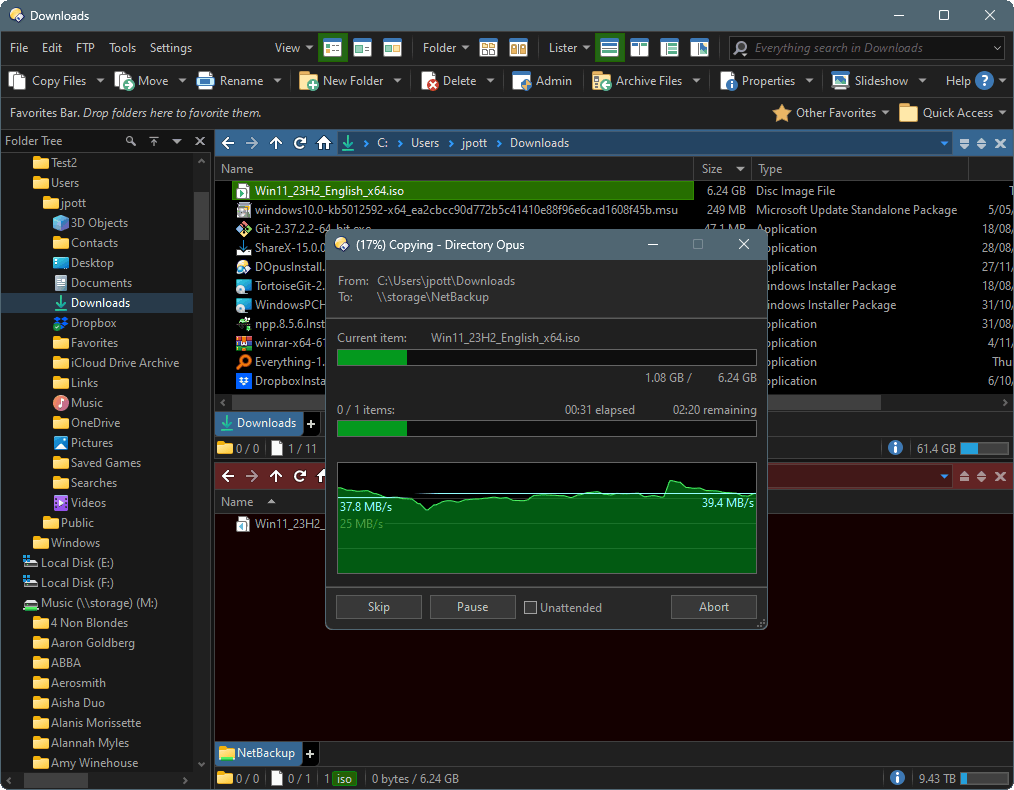
- Added File Operations / Progress Indicators / Remember previous position.
- Added Location Bar / Path Fields / Components / Insert Cloud Storage component before cloud paths.
- Added Folder Tree / Options / Position second tree to the right of vertical dual displays.
- Added File Operations / Copying Files / Confirmation / Make "All" the default action in confirmation dialog.
- Added File Display Modes / Thumbnails / Folders / Archive folder thumbnails option, lets you stop Opus generating thumbnails for archives, and folders within archives.
Commands
- Added an option for toolbars to auto-collapse their labels. This only works on horizontal toolbars (Lister/Viewer). When enabled, if a toolbar isn't wide enough to show all its buttons, button labels will be hidden to try to make room before they spill into the overflow menu. This option is per-toolbar (enabled via Customize/Toolbars). You can also override it for individual buttons.
- When any updated version of Opus 13 is run for the first time the default toolbars and context menus are now updated automatically with any new buttons (as long as they haven't been modified by the user at all). So if you never modify the default toolbars you'll now always have the latest versions.
Scripting
- Favorites command has a new
MAXWIDTHargument to limit the size of each button, in characters.- The
Find ARCHIVESargument now works with the regular file finder rather than only with duplicates search.- You can now use embedded commands with
Set GROUPBY=grouplist.Evaluator
- The
Dialog.RequestandDOpus.Requestscript methods now accept an optional fourth (or fifth) argument to display a standard icon. Valid values are "w", "i", "q" or "e" for warning/info/question/error.FSUtil.Run()now accepts the "a" flag to launch the program elevated.- The
Dialog.position_fixflag is now respected by theDialog.LoadPositionfunction. You can specify "fix" or "nofix" for the type argument to override.- The
HttpRequestobject now supports local unix sockets (on Windows 10 and above). Usehttp+unix://as the protocol followed by the path to the .sock file. Note that OS limitations mean the socket file path can't use unicode characters (ASCII only) and can't be longer than 107 characters.- Added
Control.hwndscript property.- Added
Control.SetSyntax()script method. Lets you configure syntax highlighting for the edit control in code mode. You can set it to the predefined "jscript", "vbscript" or "eval" types, or specify your own custom syntax details.- Added
DOpus.FromJson()andDOpus.ToJson()methods. Lets you convert an Opus object like a Map or Vector to json and vice versa.- The
Dialog.AddHotkey()script function now takes an optional third argument. If this is set to true the hotkey will be added as a global hotkey, and will work even when the dialog isn't active.- Added
queryproperty to theItemobject. Returns aStoredQueryobject that lets you read/write properties for stored queries (collections). This object has properties "query", "paths", "autoupdate" and "engine".- Script dialogs can now make use of the code editor control used in various Opus dialogs (e.g. in the script editor) by selecting "Code" for an edit control's "Edit Type" property.
- The
Swap()function can now exchange two array elements (e.g.Swap(array, idx1, idx2)).- The evaluator
GetInfo()function now works in the viewer. Currently the available information is:
- slideshowspeed: returns the current slideshow speed in seconds.
- selectaspectratio: returns the current selection aspect ratio as a fraction.
- In functions launched by clicking a toolbar button, the position of the button on-screen and the position of the mouse cursor when clicked are now available as evaluator variables
button_rectandclick_pt.
button_rectis a map with the following members: left, top, right, bottom, width, height, midx, midy, valid.click_ptis a map with the following members: x, y
This would, for example, let you configure buttons to perform different functions depending on which part of the button was clicked.- Added
ConcatPath()function for joining path components (you can also add //path// variables together for the same effect).- Added
FileDate()andFileSize()functions for retrieving information about a file or folder.- Context for Rename Control Keys now includes a
fullpathvariable.- Evaluator functions
FileSize()andFileDate()now work when testing evaluator columns and rename control keys in Preferences.


:fill(white):strip_exif()/i/1393843690.jpeg?f=thumbmedium)
:strip_icc():strip_exif()/u/21615/benton.jpg?f=community)

/u/151149/crop5fde11d32f663_cropped.png?f=community)
:strip_icc():strip_exif()/u/114907/Avatar_danmark_ori__polarbear_sketch_paint_t1-60x58.jpg?f=community)
/u/80569/sheep_by_teocava.png?f=community)
/u/1783274/crop69eefff12f740.png?f=community)
:strip_icc():strip_exif()/u/92809/crop577f58c1b8795.jpeg?f=community)